

What triggers a notification
Notifications come from a fixed catalog of types. The highest-signal ones are issue lifecycle events:- Issue triggered — the agent opened a new issue.
- Issue resolved — an issue was resolved.
- Issue ignored — an issue was ignored.
- Issue updated — an open issue changed: its severity went up, or it now affects another component. Sent at most once per issue a day unless the severity rises again; in Slack and Microsoft Teams it is a reply under the issue’s alert.
- Issue reopened — a resolved or ignored issue was reopened, by a person, Sazabi’s agent, or a synced tracker task. Never held back by the daily limit; in Slack and Microsoft Teams it is a new message, with what came back threaded under it. A rule that sends Issue updated sends it too.
- Issue still open — an issue is still open, 1, 2, 3, 7, 14, 21 and 28 days after it opened, then monthly. Resolving or ignoring it stops the reminders; reopening it starts them again.
Channels
A channel is either personal (each user configures their own) or shared (a project admin configures one destination for the whole project).
In-app and email are on by default for a new user; the other personal channels are opt-in. Issue lifecycle events (triggered, resolved, ignored) stay in the bell feed by default but skip email, so noisy operational events do not fill your inbox.
For channel-specific setup, see the integration pages: Slack (Slack integration), Microsoft Teams (Microsoft Teams integration), PagerDuty (PagerDuty), incident.io (incident.io), and Rootly (Rootly). Webhooks are covered in Configure webhooks.
Personal vs shared
The two kinds are gated differently, and that difference is the model:- Personal channels are gated by your own preference. Nobody can opt you in, and your preferences are global to you across every organization and project.
- Shared channels are gated by a delivery rule. A shared destination receives an event only when an enabled rule names both that destination and that event. No rule means no shared delivery; individual users cannot opt a shared destination out.
Delivery rules
A delivery rule routes an event type to one or more shared destinations, with optional conditions. Create one at the project Settings > Notifications page under Delivery rules > Add delivery rule.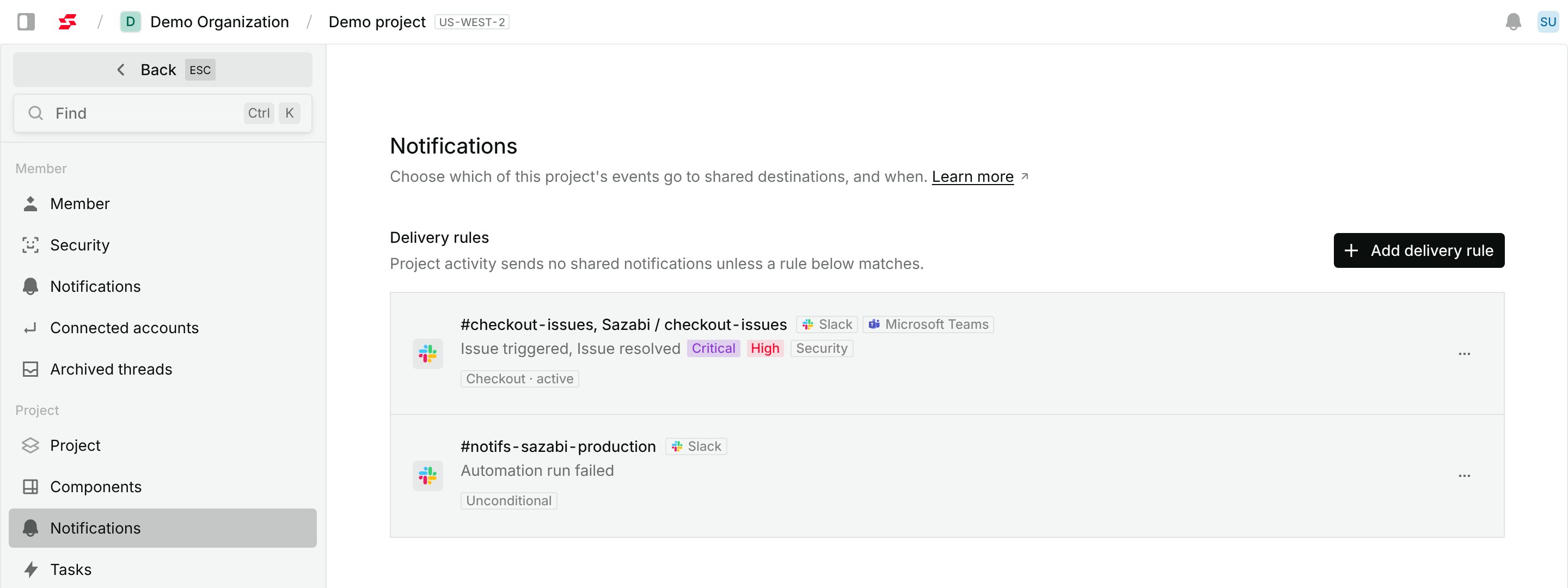
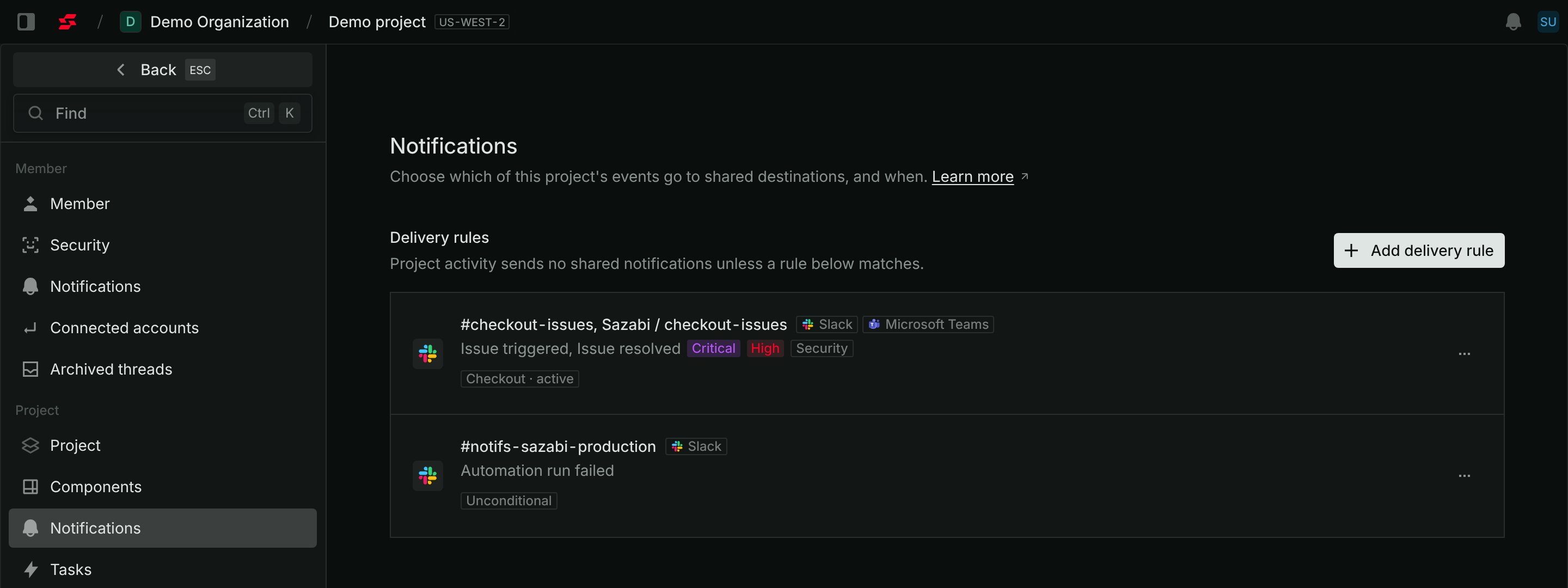
Project Settings > Notifications, with two delivery rules.
- Match by component — route only issues linked to a named component.
- Match by owning team — route only issues whose component is owned by a listed team, so a team’s rule stays current as components move to and from it with no rule edit.
- Match by severity — route only issues with the severities you select (low, medium, high, critical). The dashboard shows this condition as Severity is one of. Select each severity you want; selecting high alone does not include critical.
- Match by type — route only issues that have one of the issue types you select (reliability, correctness, security, efficiency). A rule matches when any of the issue’s types is listed, so an issue with both reliability and security matches a rule for either. The dashboard shows this condition as Type is one of. Rules match on types only, not on categories.
sazabi notifications delivery-rules options lists the valid event types, destinations, and severities; sazabi notifications delivery-rules create adds a rule, sazabi notifications delivery-rules list shows the current ones, and sazabi notifications delivery-rules update / delete edit or remove one. sazabi notifications channels get inspects the project’s configured channels.
--destination takes a channel:key pair; --notification-type, --destination, --component-id, --team-id, --severity, and --type all repeat to build a rule that fans out to several destinations or matches several conditions. --component-id and --team-id are mutually exclusive on one rule.
Personal notification preferences (which of your own channels receive which events) are set in the dashboard under Settings > Notifications — there is no CLI command to change your personal preferences; the CLI manages shared delivery rules only.
Steps
1
Set your personal preferences
Go to Settings > Notifications (the personal page) and choose which channels receive which event types. You should see in-app and email already on. Turn on Slack DM or SMS if you want those.2
Add a shared delivery rule
Open the project Settings > Notifications page, then Delivery rules > Add delivery rule. Pick the event type (for example Issue triggered), choose a shared destination (a connected Slack channel), and optionally add a severity condition, a type condition, and either a component or an owning-team condition. Save. You should see the rule listed under Delivery rules. From the CLI, this step issazabi notifications delivery-rules create (see
Delivery rules above).3
Confirm the destination is connected
The rule can only target a destination whose integration is connected. If no destinations are available, connect the integration first under Settings > Integrations.Verify
Trigger a real issue event you can observe. Resolve or re-open an issue in the project inbox (the test issue Sazabi created with your first project works; creating it sent no notification), and confirm the issue card posts to the shared Slack channel named in your rule within a minute. If nothing arrives, check that the rule names both the event type and that destination, and that the issue’s severity meets any minimum-severity condition on the rule.Further reading
Slack integration
Connect Slack for channel delivery and issue cards.
Configure webhooks
Deliver events to an HTTP endpoint you control.